<?xml version="1.0" encoding="utf-8" ?>
<?xml-stylesheet type="text/xsl" href="header_e.xsl" ?>
<body PageTitle="Posing an airplane model" PageHeader="Tutorials" Updated="2019-08-23" FName="tutorials-020">
<br/>
<div>
Every airplane has many parts, that can be moved or rotated – in particular, its control surfaces. 
On the ground, or in the flight, they are often out of their neutral position. During creation 
of the La-5 model I have tried to find the easiest way to control its moveable parts. This article 
describes the solution, I would like to propose. If you want to repeat or check the operations 
described below, load the <A href="downloads-la5_e.xml">La-5 model</A>. Do not forget to read the 
<A href="downloads-la5-intro_e.xml">description of its structure</A> – 
it will allow you to follow this text.
</div>
<div>

<p>For the current Blender version (2.8) download this <a href="downloads/scripts/28/scene-handle-panel.zip"><b>Handle Panel</b></a>  
add-on file. </p>
<p><small>For quick creating parents of your handle objects, you can use this <a href="downloads/scripts/28/object-add-parent.zip">additional utility</a> (for Blender 2.8). It adds an Empty object as the parent of the active object. It also resets the local croordinate system of the active object (the handle), allowing for a more intuitive "Limit Location" settings.</small></p>
<p><small>For Blender 2.7 and 2.6, download this <a href="downloads/scripts/25/scene-handle-panel.zip">Handle Panel</a>  
add-on file, described in the 4th section of this tutorial.</small></p>
<p><small>For Blender 2.4, download this <a href="downloads/scripts/HandlePanel.py">HandlePanel.py</a> script file, described in the 3rd section of this tutorial.</small>
</p>
</div>
<div class="subheader">1. Simplest case - canopy hood</div>
<div>
<p>
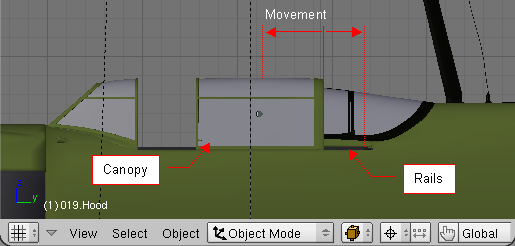
Canopy hood on the La-5 slides backwards, along the rails, while it is being opened 
(see Fig. 1.1).
</p>
</div>
<div>
<table cellSpacing="0" cellPadding="0pt" align="center">
	<tr align="center" valign="top">
		<td>
			<A href="images/tutorials/020/image11_e.png" target="_blank" title="click to see larger image">
				<IMG class="image640" style="max-width:515px;" src="images/tutorials/020/image11_e.png" align="center"/>
			</A>
		</td>
	</tr>
	<tr align="center" valign="top">
		<td valign="top"><spanl>Fig. 1.1. Canopy hood, and its rails.</spanl></td>
	</tr>
</table>
</div>
<divf>
<p>
Of course, the cockpit canopy can be moved manually along its rails, in this model. 
Yet following such a trajectory always requires a special precision. Is there something in Blender, 
which automatically would restrict the movement of this element to its rails?
</p>
</divf>
<div>
<p>
Yes it is. There are <b>constraint</b> object modifiers. I decided not to apply them to the canopy hood directly. 
Sometimes it can be difficult to select such an object among the others. 
In the real machine, the cockpit canopy assembly was built from four parts: 
the skeleton, made from a steel tube, the outer frame, formed from a dural tin, 
the layer of organic glass between them, and a small release handle. 
All these parts have been reproduced in this model. 
The steel tube inner frame is the parent of the rest. 
It is very easy to select unintentionally the glass object, instead of this frame. 
When you move it, the rest of the canopy assembly will remain on its place. 
Thus, it is better idea to create an artificial "handle" that 
would be located in a more accessible place. It will be the parent of the inner frame. 
The solution is shown in Fig. 1.2 and in Fig. 1.3:
</p>
</div>
<div>
<table cellSpacing="0" cellPadding="0pt" align="center">
	<tr align="center" valign="top">
		<td>
			<A href="images/tutorials/020/image12_e.png" target="_blank" title="click to see larger image">
				<IMG class="image640" style="max-width:515px;" src="images/tutorials/020/image12_e.png" align="center"/>
			</A>
		</td>
	</tr>
	<tr align="center" valign="top">
		<td valign="top"><spanl>Fig. 1.2. Additional, artificial objects: handle and its base.</spanl></td>
	</tr>
</table>
</div>
<divf>
<p>
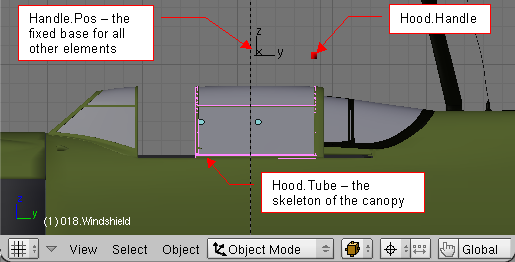
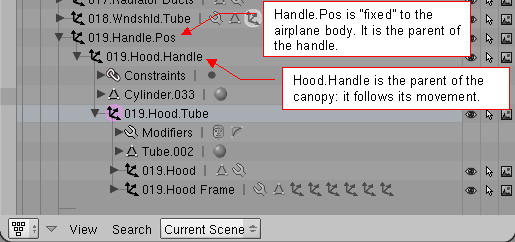
I have added a canopy handle – <b>019.Hood.Handle</b>. This object is the parent of the whole canopy assembly – it 
follows its movements. <b>Hood.Handle</b> object is located relatively far away from the the model, for easier selection.
</p>
</divf>
<div>
<table cellSpacing="0" cellPadding="0pt" align="center">
	<tr align="center" valign="top">
		<td>
			<A href="images/tutorials/020/image13_e.png" target="_blank" title="click to see larger image">
				<IMG class="image640" style="max-width:515px;" src="images/tutorials/020/image13_e.png" align="center"/>
			</A>
		</td>
	</tr>
	<tr align="center" valign="top">
		<td valign="top"><spanl>Fig. 1.3. The hierarchy of this fragment.</spanl></td>
	</tr>
</table>
</div>
<divf>
<p>
My idea is to use the <b>Hood.Handle</b> object to move the canopy. It is located on a separate layer,
which should be excluded from the rendering. To restrict its 
movement to one-dimensional slide along the rails, I have added an empty object – <b>019.Handle.Pos</b> - to this model.
It is the "base" of the <b>Hood.Handle</b> movement, and its parent. <b>Handle.Pos</b> object is fixed to the body of the airplane. 
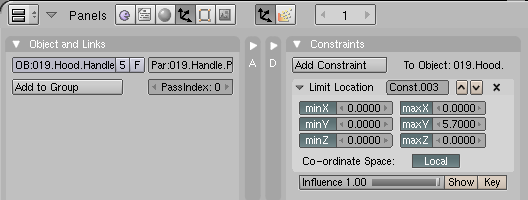
<b>Hood.Handle</b> object has a constraint, which restricts its movement to the segment matching 
the rails. It is shown on the Fig. 1.4.
</p>
</divf>
<div>
<table cellSpacing="0" cellPadding="0pt" align="center">
	<tr align="center" valign="top">
		<td>
			<A href="images/tutorials/020/image14.png" target="_blank" title="click to see larger image">
				<IMG class="image640" style="max-width:528px;" src="images/tutorials/020/image14.png" align="center"/>
			</A>
		</td>
	</tr>
	<tr align="center" valign="top">
		<td valign="top"><spanl>Fig. 1.4. Constraint, restricting the handle movement to a segment along Y axis (as it was in Blender 2.45)</spanl></td>
	</tr>
</table>
</div>
<divf>
<p>
Examine the settings of the constraint shown in the Fig. 1.4. It is a <b>Limit Location constraint</b>. 
(The Fig. 1.4 shows how it looked like in Blender 2.45. Its ranges are expressed relative to its parent. 
I think that it is easier to explain the idea using this old version of this constraint. 
The more "novel" one is shown in Fig. 1.5).
The only allowed movement of the <b>Hood.Handle</b> object is along the <b>Y</b> axis (note that only the 
<b>minY</b> and <b>maxY</b> values create a non-zero range). 
Because the <b>Local</b> option of this constraint is turned on, range distances 
are measured from the parent of the <b>Hood.Handle</b> – the <b>Handle.Pos</b> object. 
It is the only reason of the <b>Handle.Pos</b> existence – to mark the handle neutral position. 
It is sometimes impossible to use any model part for this purpose – 
they have their centers in other places, ant not always they can be displaced. That's why it is easier just to use
an <b>Empty</b> object here.
</p>
<p>
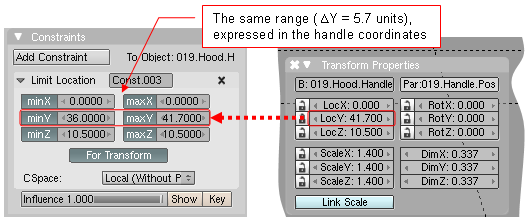
In later Blender versions, the convention of specifying the limit ranges has changed. 
Currently you have to write there the same coordinates, which are visible in Transform Properties window 
(Fig. 1.5): 
</p>
</divf>
<div>
<table cellSpacing="0" cellPadding="0pt" align="center">
	<tr align="center" valign="top">
		<td>
			<A href="images/tutorials/020/image15_e.png" target="_blank" title="click to see larger image">
				<IMG class="image640" style="max-width:529px;" src="images/tutorials/020/image15_e.png" align="center"/>
			</A>
		</td>
	</tr>
	<tr align="center" valign="top">
		<td valign="top"><spanl>Fig. 1.5. The current <b>Limit Location</b> constraint (as it was in Blender 2.49)</spanl></td>
	</tr>
</table>
</div>
<div>
<p>
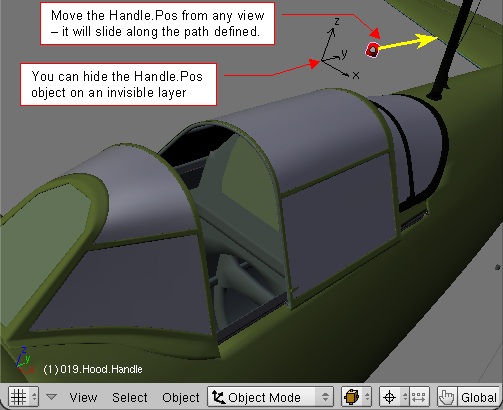
So – here is the first effect. You can easily grab the handle, from any view, not worrying about 
the distance nor direction of your movement. The handle "knows" its path, and will 
never exceed its limits:
</p>
</div>
<div>
<table cellSpacing="0" cellPadding="0pt" align="center">
	<tr align="center" valign="top">
		<td>
			<A href="images/tutorials/020/image16_e.png" target="_blank" title="click to see larger image">
				<IMG class="image640" style="max-width:503px;" src="images/tutorials/020/image16_e.png" align="center"/>
			</A>
		</td>
	</tr>
	<tr align="center" valign="top">
		<td valign="top"><spanl>Fig. 1.6. The handle can be moved “carelessly” now – it knows, where to go, and does not allow for any mistake.</spanl></td>
	</tr>
</table>
</div>
<div class="subheader">2. Complex case – the engine cooling system</div>
<div>
<p>
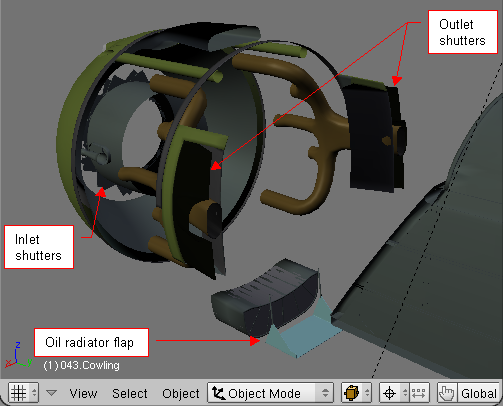
Canopy handle is a simple case. You will learn the real power of movement handles, analyzing the 
solution devised for the engine cooling system. It is demonstrated on Fig. 2.1:
</p>
</div>
<div>
<table cellSpacing="0" cellPadding="0pt" align="center">
	<tr align="center" valign="top">
		<td>
			<A href="images/tutorials/020/image21_e.png" target="_blank" title="click to see larger image">
				<IMG class="image640" style="max-width:503px;" src="images/tutorials/020/image21_e.png" align="center"/>
			</A>
		</td>
	</tr>
	<tr align="center" valign="top">
		<td valign="top"><spanl>Fig. 2.1. Moveable parts of the engine cooling system in La-5.</spanl></td>
	</tr>
</table>
</div>
<divf>
<p>
Although in the real airplane every of the elements, shown on the Fig. 2.1, had its own control, 
their position was always similar: opened at the low speed (or on the ground), and nearly closed at 
the high speed. It would be the best, if it all these parts could move, following a single 
control handle. But how to obtain such effect? The outlet shutters rotate around a skewed axes. 
The oil radiator flap has two actuators, which should follow its movement. And there are two 
rings of inlet shutters, each of them rotating along its own axis – one ring clockwise, 
the second – counterclockwise. How to join all these different movements with one handle?
</p>
<p>
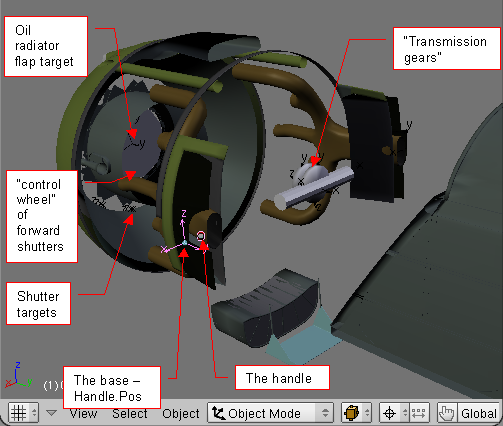
Well, the solution is presented below, on the Fig. 2.2:
</p>
</divf>
<div>
<table cellSpacing="0" cellPadding="0pt" align="center">
	<tr align="center" valign="top">
		<td>
			<A href="images/tutorials/020/image22_e.png" target="_blank" title="click to see larger image">
				<IMG class="image640" style="max-width:503px;" src="images/tutorials/020/image22_e.png" align="center"/>
			</A>
		</td>
	</tr>
	<tr align="center" valign="top">
		<td valign="top"><spanl>Fig. 2.2. The “virtual machine”, that moves the cooling system.</spanl></td>
	</tr>
</table>
</div>
<divf>
<p>
The movement of the handle is restricted by Limit Location constraint, relative to its parent – 
another empty <b>Handle.Pos object</b>. The displacement of the handle moves other helper (empty) 
objects. They are tracked, using Lock Track constraints, by the “transmission gears”, located 
between the outlet shutters. The cylinder mirrors the movement of right shutter to the left 
shutter (using a Stretch To constraint). The double wheels use Locked Track constraint to 
transfer the handle movement into a rotation – one clockwise, the another – counterclockwise. 
Their rotation is repeated by the wheels inside the rings of inlet shutters. For every inlet shutter 
there is an empty “target” object, “fixed” to the control wheel. Each shutter rotates along 
its axis, tracking its “target” through Locked Track constraint.
</p>
<p>
This "virtual machine" uses the constrains that were available in Blender 2.43 
(in the time when I created this model). In the newer Blender releases Aligorth (the Blender developer 
responsible for the constraints) has added their new types. One of them is Transformation, which you can 
use as the “universal transmission gear”. You can obtain the effect, described above, with simpler 
constraint system that uses a few Transform constraints. (Example of such you can find in my later 
<A href="model-p40_e.xml">P-40B model</A>).
</p>
<p>
What’s more, in Blender 2.43 the Limit Location worked always along the global coordinate system axes, 
even with in the Local mode! When I tried to rotate my model, this constraint would create mess with the 
engine cowling elements… This gave me the first impulse to write a Python script that would overcome 
this problem. In effect, I created an universal “control panel” to pose the models. I named it Handle Panel.
Although the Limit Location is already fixed, I still use this script. It is easier to control the model 
using the GUI controls, than to search for the handle objects, dispersed in many different places. 
</p>
</divf>
<div class="subheader">3. Using the Handle Panel script (Blender 2.4)</div>
<div>
<p>
I use this script for convenient control of the moveable parts. It is named 
HandlePanel.py, and available from <a href="downloads/scripts/HandlePanel.py">here</a>. 
Download it, and save into your Blender <a href="scripts-010_e.xml">scripts directory</a> - it will appear 
in Blender Scripts Window, as <b>Scripts=>Misc=>Handle Panel</b> menu command. It is also included as one of the 
Text Editor datablocks of the La-5 model, used in this tutorial. You can open it there and run by pressing <b>[Alt]-[P]</b>.
</p>
<p>
(For Blender 2.5 there is the Handle Panel add-on - see the next section.)
</p>
<p>
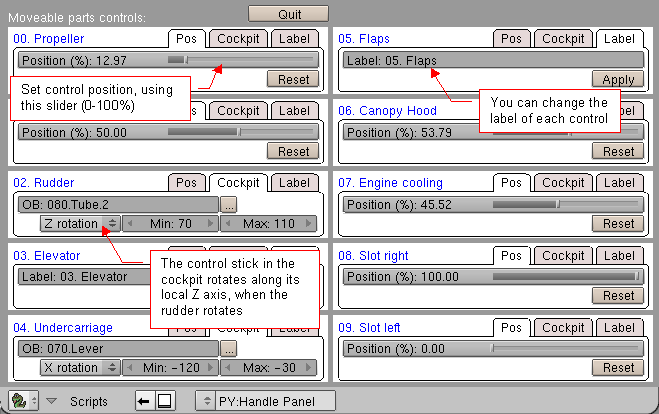
For the La-5 model, Handle Panel screen in Blender 2.4 looks like on Fig. 3.1:
</p>
</div>
<div>
<table cellSpacing="0" cellPadding="0pt" align="center">
	<tr align="center" valign="top">
		<td>
			<A href="images/tutorials/020/image31_e.png" target="_blank" title="click to see larger image">
				<IMG  class="image700" style="max-width:659px;" src="images/tutorials/020/image31_e.png" align="center"/>
			</A>
		</td>
	</tr>
	<tr align="center" valign="top">
		<td valign="top"><spanl>Fig. 3.1. Handle panel for the La-5 model (Blender 2.4).</spanl></td>
	</tr>
</table>
</div>
<divf>
<p>
For every handle that exists in the model, this script displays a single panel containing 
3 tabs: Pos, Cockpit, Label. You can see ten of such panels in Fig. 3.1. 
</p>
<li>
<b>Pos tab</b>: use it to set position of the moveable part (in fact: the handle). Move the slider 
<b>Position</b>, or just type its value - between 0% and 100%. Observe the model – it will 
adapt to your changes. You do not need to remember, where the neutral position of the handle is. 
Just press the <b>Reset</b> button, to set the moveable part into its "rest" state. Usually, 
this neutral position is at 0% or 100%. Some control surfaces have it at 50% (because they can 
be rotated in two directions). The "rest" position is always in the origin of the handle parent;
</li>
<li>
<b>Label tab</b>: optional. Use it to set the label, assigned to the control, as you like 
(see <b>05. Flaps item</b> on the Fig. 3.1). Initially, the labels are identical to handle 
object names. Thus, we would have a panel named  "019.Hood.Handle", for the canopy hood. You can 
change it to any more "user friendly" text. I would suggest to use the numeric prefixes, 
because panels on the screen are sorted alphabetically. This prefix would allow you to control 
the position of the particular panel in the Scripts Window;
</li>
<li>
<b>Cockpit tab</b>: <span style="color:brown;">[*Deprecated since Blender 2.48 - it is better to use 
the Transformation constraint*]</span><small> optional – may be left blank.  Use it to “synchronize” position or rotation 
of selected object with the position of the handle slider control. (See <b>02. Rudder</b> item on the Fig. 3.1).
I have used this tab for assignment of the cockpit controls, which have to follow the movements of 
airplane’s rudder, elevator, or ailerons. The <b>OB</b> input box let you to type the name of 
the object, that has to be synchronized. (When you click the <b>[…]</b> button on its right side
 – the name of the active object will be pasted to the <b>OB</b> field). From menu button, 
 below, you can select one of 6 possible transformations, that will be synchronized with the 
 control movement. Finally, the <b>Min</b> and <b>Max</b> input boxes allows to set the 
 displacement range. Cockpit tab can be also used for the controls outside the cockpit. When you 
 examine the <b>00. Propeller</b> panel, you discover, that there is a base (<b>Handle.Pos</b>) and 
 a handle object, but they directly change nothing. The propeller axis rotates, because it is 
 synchronized with the handle, through the <b>Cockpit tab</b>. It was the easiest way to set 
 up a rotation bigger than 360 degrees.</small>
</li>
</divf>
<div class="subheader">4. Using the Handle Panel add-on (Blender 2.5 and later)</div>
<div>
<p>
I use this add-on for convenient control of the moveable parts. It is named 
scene_handle_panel.py, and available from <a href="downloads/scripts/25/scene-handle-panel.zip">here</a>. 
Download it, and add to your Blender. (Here you can find the description <a href="scripts-251_e.xml">how to do it</a>).
Once installed, you will find this add-on in the <b>Scene</b> category of the Blender User Preferences:Add-ons window.
</p>
<p>
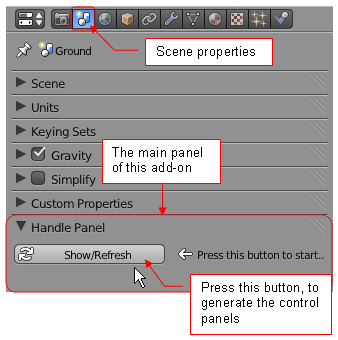
When you activate this add-on, it adds the <b>Handle Panel</b> to your <b>Scene</b> properties tab: Fig. 4.1:
</p>
</div>
<div>
<table cellSpacing="0" cellPadding="0pt" align="center">
	<tr align="center" valign="top">
		<td>
			<A href="images/tutorials/020/image41_e.png" target="_blank" title="click to see larger image">
				<IMG  class="image500" style="max-width:338px;" src="images/tutorials/020/image41_e.png" align="center"/>
			</A>
		</td>
	</tr>
	<tr align="center" valign="top">
		<td valign="top"><spanl>Fig. 4.1. Initial state of the Handle Panel (Blender 2.5).</spanl></td>
	</tr>
</table>
</div>
<divf>
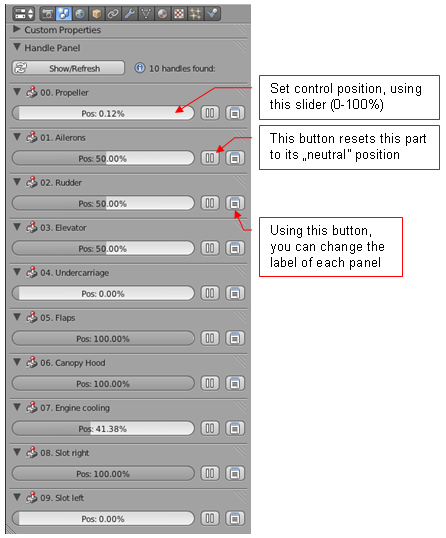
<p>
When you press the <b>Show/Refresh</b> button on this panel, it will search your file and display the control
panel for each found handle (Fig. 4.2):
</p>
</divf>
<div class="right500" style="max-width:500;margin:auto;">
<table cellSpacing="0" cellPadding="0pt" align="center">
	<tr align="center" valign="top">
		<td>
			<A href="images/tutorials/020/image42_e.png" target="_blank" title="click to see larger image">
				<IMG  class="image500" style="max-width:446px;" src="images/tutorials/020/image42_e.png" align="center"/>
			</A>
		</td>
	</tr>
	<tr align="left" valign="top">
		<td valign="top"><spanl>Fig. 4.2. Handle panel for the La-5 model (Blender 2.5).</spanl></td>
	</tr>
</table>
</div>
<div>
<p>
Each control panel contains 3 controls: Pos, Reset, Label. You can see ten of such panels in Fig. 4.2. 
</p>
<li>
<b>Pos</b>: use it to set position of the moveable part (in fact: the handle). Move the slider 
<b>Position</b>, or just type its value - between 0% and 100%. Observe the model – it will 
adapt to your changes. 
</li>
<li>
<b>Reset</b> button:use it to set the moveable part into its "rest" ("neutral") state. Usually, 
this neutral position is at 0% or 100%. Some control surfaces have it at 50% (because they can 
be rotated in two directions). The "rest" position is always in the origin of the local cordinate system of the handle object 
(i.e. in the origin of the coordinates that you can see in the Transform panel of its Properties);
</li>
<li>
<b>Label</b> button: optional. Use it to set the label, assigned to the control, as you like 
(see <b>05. Flaps item</b> on the Fig. 4.2). Initially, the labels are identical to handle 
object names. Thus, we would have a panel named  "019.Hood.Handle", for the canopy hood. You can 
change it to any more "user friendly" text. I would suggest to use the numeric prefixes, 
because panels on the screen are sorted alphabetically. This prefix would allow you to control 
the position of the particular panel in the Scene properties;
</li>
</div>
<divf/>
<div class="subheader">5. Creating a handle panel for your model.</div>
<div>
<p>
On startup, Handle Panel script searches the current scene for the handle objects, that should 
be presented as the panels. This means, that you can utilize it for your own models. It will 
show a panel for every object, that:
</p>
<li>has a <b>name</b>, that ends with “.Handle” suffix;</li>
<li>has a <b>parent object</b> (parent object origin is treated by this script as the neutral 
position of the handle);</li>
<li>has a <b>Limit Location constraint</b>, with toggle <b>[Local]</b> set on;</li>
</div>
<div>
<p>
The 019.Canopy.Handle, presented in details on Fig. 1.2 – 1.6, is an example of such an object. 
Create similar ones in your model. It is up to you, what will be "connected" to the movement of 
this object. Test the newly created handle, moving it along the predefined track, with the 
Limit Location constraint active. Handle Panel script will use the information from this 
constraint, to determine the path for this object.
</p>
</div>
<div class="subheader">6. Animating the airplane.</div>
<div>
<p>
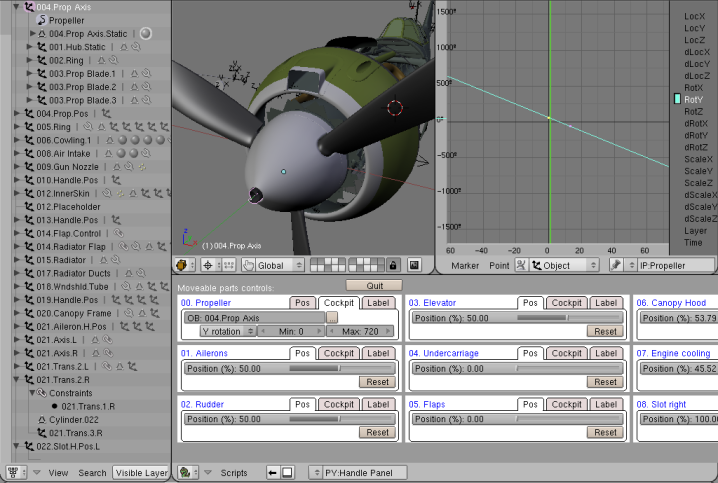
“Handle” objects are also usable for animations: connect them to a set of IPO curves. Use 
Handle Panel to prepare handle position for every keyframe. Notice, that many La-5 handles 
(the rudder, the elevator, propeller, ailerons and slats) have IPO curves assigned. 
Their keyframes were created using the Handle Panel script.
</p>
</div>
<div>
<table cellSpacing="0" cellPadding="0pt" align="center">
	<tr align="center" valign="top">
		<td>
			<A href="images/tutorials/020/image51.png" target="_blank" title="click to see larger image">
				<IMG  class="image800" style="max-width:718px;" src="images/tutorials/020/image51.png" align="center"/>
			</A>
		</td>
	</tr>
	<tr align="center" valign="top">
		<td valign="top"><spanl>Fig. 6.1. IPO curve, assigned to the propeller axis (004.Prop.Axis), in the La-5 model.</spanl></td>
	</tr>
</table>
</div>
<divf>
<p>
Fig. 6.1 shows the IPO curve, that controls the rotation of the propeller. Keyframes for this 
curve were prepared using the Handle Panel script. This motion is responsible for the motion 
blur of the propeller blades. This effect occurs, when you turn the <b>MBLUR</b> Renderer 
toggle on.
</p>
</divf>
</body>