<?xml version='1.0' encoding='utf-8' ?>
<?xml-stylesheet type="text/xsl" href="header_e.xsl" ?>
<body PageTitle="Knife command" PageHeader="Tutorials" Created="2011-08-21" Updated="2011-08-21">
<br/>
<div>
<p>
Blender 2.5 has the knife tool, but it allows to use only the freehand drawn “cutting line”. 
It is very difficult to adapt this tool for the precise modeling of an airplane or a car.
Fortunately, there is an add-on, which allows drawing the cutting line with the straight segments.
It was written by the programmer having the nick <b>chromoly</b>. 
<br/>
It seems that he did not have his own portal, so it was difficult to get the actual version of his script. 
That is why I have decided to host this add-on on my pages, as long, as there is no "straight line" knife in Blender.
</p>
</div>
<div>
<p><a href="downloads/scripts/25/mesh-knife.zip">Here</a> you can download the <b>mesh_knife.py</b> add-on file.</p>
<p>
To follow this tutorial, you should install this add-on into your Blender environment. (Here is the <a href="scripts-251_e.xml">tutorial</a>, 
which explains how to do that).
</p>
</div>

<br/>
<div class="subheader">Add-on activation</div>
<div>
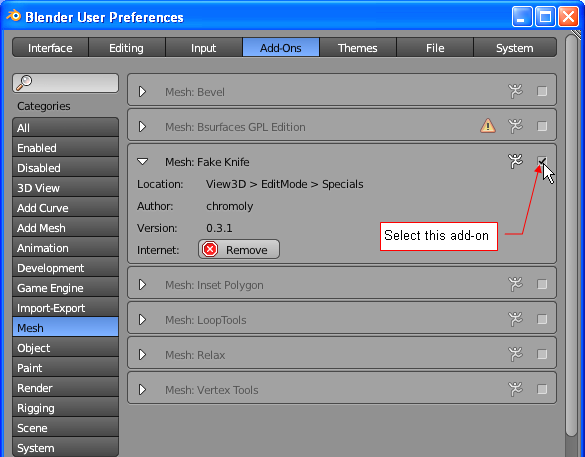
<p>To use the Fake Knife command, activate <b>Fake Knife</b> add-on (you will find it in the <b>Mesh</b> category) (Fig.1):</p>
<table cellSpacing="0" cellPadding="0pt" align="center">
	<tr align="center" valign="top">
		<td>
				<IMG src="images/scripts/255/image01_e.png" align="center"/>
		</td>
	</tr>
	<tr align="center" valign="top">
		<td><spanl>Fig. 1. Activation of the <b>Fake Knife</b> add-on.</spanl></td>
	</tr>
</table>
</div>
<divf/>
<div>
If you want to activate it permanently, use <b>Save As Default</b> button. 
Remember, that it saves actual drawing, with all its content, as the default one. 
The best moment to use this button is just after opening Blender with its default content.
</div>
<div class="subheader">Add-on usage</div>
<div>
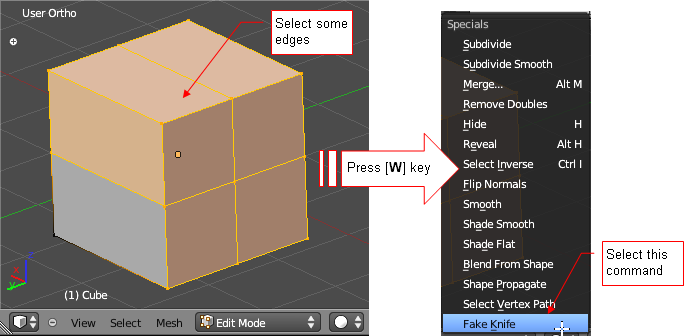
<p>In <b>Edit Mode</b> select the edges, you want to bevel (Fig. 2), then press [<b>W</b>] key, to open the <b>Specials</b> menu:</p>
<table cellSpacing="0" cellPadding="0pt" align="center">
	<tr align="center" valign="top">
		<td>
				<IMG src="images/scripts/255/image02_e.png" align="center"/>
		</td>
	</tr>
	<tr align="center" valign="top">
		<td><spanl>Fig. 2. Invoking the <b>Fake Knife</b> command</spanl></td>
	</tr>
</table>
</div>
<divf/>
<div>
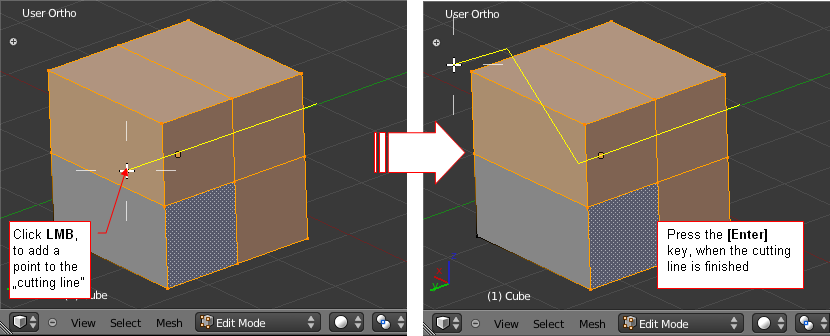
<p>Select the <b>Fake Knife</b> command from there. The knife cursor will appear on the screen. 
Use it to draw the “cutting line” on the screen (Fig. 3):</p>
<table cellSpacing="0" cellPadding="0pt" align="center">
	<tr align="center" valign="top">
		<td>
				<IMG src="images/scripts/255/image03_e.png" align="center"/>
		</td>
	</tr>
	<tr align="center" valign="top">
		<td><spanl>Fig. 3. Drawing the "cutting line"</spanl></td>
	</tr>
</table>
</div>
<divf/>
<div>
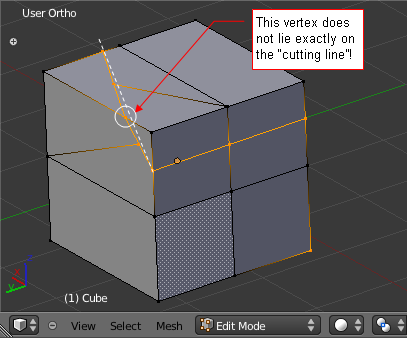
<p>When the line of the cut is ready, press the <b>[Enter]</b> key, and you will see the result (Fig. 4)</p>
<table cellSpacing="0" cellPadding="0pt" align="center">
	<tr align="center" valign="top">
		<td>
				<IMG src="images/scripts/255/image04_e.png" align="center"/>
		</td>
	</tr>
	<tr align="center" valign="top">
		<td><spanl>Fig. 4. The result of this cut</spanl></td>
	</tr>
</table>
</div>
<divf/>
<div>
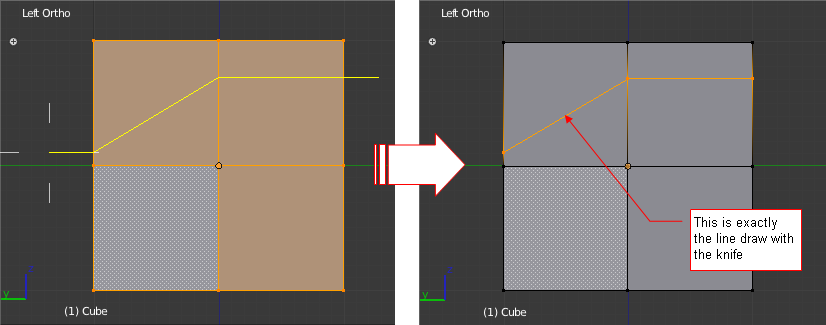
<p>Notice that one of the vertices does not lie exactly on the line we have drawn. 
It may be the defect of the Blender knife command (this add-on uses it internally). 
Fortunately, for the precise modeling we will use this tool in the left, top or front view. 
It works perfectly there (Fig. 5):</p>
</div>
<div>
<table cellSpacing="0" cellPadding="0pt" align="right">
	<tr align="center" valign="top">
		<td>
				<IMG src="images/scripts/255/image05_e.png" align="center"/>
		</td>
	</tr>
	<tr align="center" valign="top">
		<td><spanl>Fig 5. Cutting in the side view</spanl></td>
	</tr>
</table>
</div>
</body>