<?xml version='1.0' encoding='utf-8' ?>
<?xml-stylesheet type="text/xsl" href="header_e.xsl" ?>
<body PageTitle="Vertex Tools" PageHeader="Plugins" Created="2011-08-21" Updated="2019-07-08"  FName="scripts-254">
<br/>
<div>
<p>
This add-on contains three vertex operations, ported from the Geom Tools script (used in Blender 2.4).
They were just the most requested features, at least on my local Blender forum. 
Feel free to extend this add-on, porting the other original Geom Tools commands to Blender 2.8!
</p>
</div>
<div>
<p><b><a href="downloads/scripts/28/mesh-vertex-tools.zip">Here</a></b> you can download the <b>mesh_vertex_tools.py</b> add-on file for Blender 2.8.</p>
<p><a href="downloads/scripts/25/mesh-vertex-tools.zip">Here</a> you can download the mesh_vertex_tools.py add-on file for previous Blender versions (2.5 - 2.7).</p>
<p>
To follow this tutorial, you should install this add-on into your Blender environment. (Here is the <a href="scripts-251_e.xml">tutorial</a>, which explains how to do that. NOTE: the pictures were made in Blender 2.7).
</p>
</div>
<br/>
<div class="subheader">Add-on activation</div>
<div>
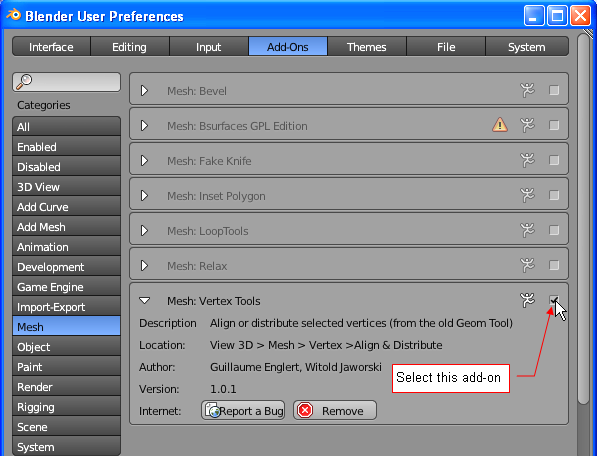
<p>To use the Vertex Tools commands, activate <b>Vertex Tools</b> add-on (you will find it in the <b>Mesh</b> category) (Fig.1):</p>
<table cellSpacing="0" cellPadding="0pt" align="center">
	<tr align="center" valign="top">
		<td>
				<IMG class="image640" style="max-width:597px" src="images/scripts/254/image01_e.png" align="center"/>
		</td>
	</tr>
	<tr align="center" valign="top">
		<td><spanl>Fig. 1. Activation of the <b>Vertex Tools</b> add-on.</spanl></td>
	</tr>
</table>
</div>
<divf/>
<divf>
<p>If you want to activate it permanently in Blender 2.7 and earlier versions, use <b>Save User Setings</b> button.</p>
</divf>
<div class="subheader">Add-on usage</div>
<div>
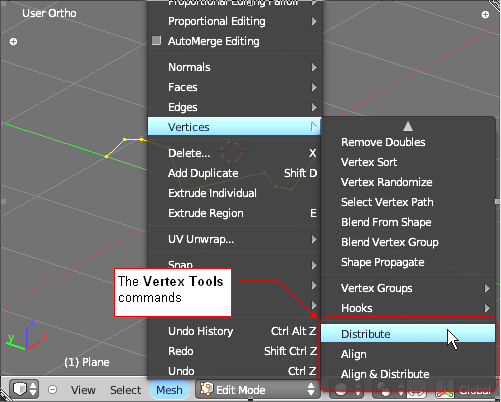
<p>In <b>Edit Mode</b> select the edge, you want to change. 
Operations, implemented by this add-on in Blender 2.7 were available in the <b>Mesh=>Vertices</b> menu (Fig. 2), while in Blender 2.8 you can find them in the <b>Vertices</b> menu.</p>
</div>
<div class="right700" style="max-width:550px; margin:auto;">
<table cellSpacing="0" cellPadding="0pt" align="center">
	<tr align="center" valign="top">
		<td>
				<IMG class="image500" style="max-width:501px"  src="images/scripts/254/image02_e.png" align="center"/>
		</td>
	</tr>
	<tr align="center" valign="top">
		<td><spanl>Fig. 2. The <b>Vertex Tools</b> commands</spanl></td>
	</tr>
</table>
</div>
<div>
<p>There are three new commands, at the bottom of the Vertices menu/submenu (Fig. 2):</p>
<li>Distribute</li>
<li>Align</li>
<li>Align and Distribute</li>
</div>
<div>
<p>They are described on the pictures below:</p>
</div>
<divf/>
<div class="subheader">Distribute</div>
<div>
<table cellSpacing="0" cellPadding="0pt" align="center">
	<tr align="center" valign="top">
		<td>
				<IMG class="image850" style="max-width:754px" src="images/scripts/254/image03_e.png" align="center"/>
		</td>
	</tr>
	<tr align="center" valign="top">
		<td><spanl>Fig. 3. The <b>Distribute</b> command</spanl></td>
	</tr>
</table>
</div>
<divf>
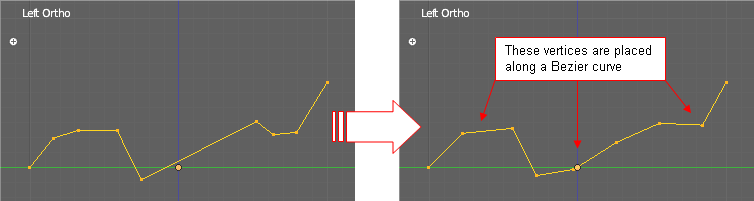
<p>This command “relaxes” the selected edge loop. The inner vertices are placed along a Bezier Curve 
that approximates the original line. In this new shape, the lengths of the subsequent edges are more equalized.
</p>
</divf>
<div class="subheader">Align</div>
<div>
<table cellSpacing="0" cellPadding="0pt" align="center">
	<tr align="center" valign="top">
		<td>
				<IMG class="image850" style="max-width:753px" src="images/scripts/254/image04.png" align="center"/>
		</td>
	</tr>
	<tr align="center" valign="top">
		<td><spanl>Fig. 4. The <b>Align</b> command</spanl></td>
	</tr>
</table>
</div>
<divf>
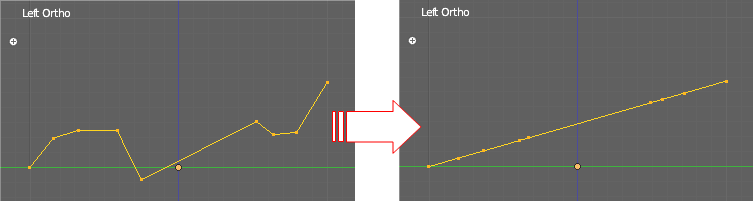
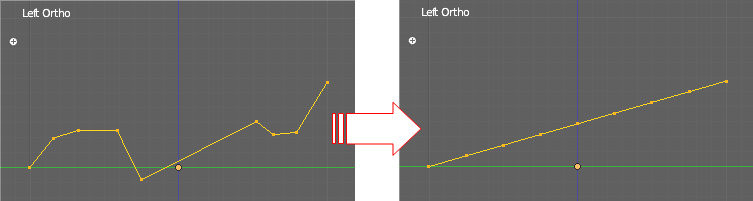
<p>This command places all selected vertices on a straight line, running from the first to the last vertex. 
Notice, that the distances between the vertices, measured along this line, are preserved.
</p>
</divf>
<div class="subheader">Align and Distribute</div>
<div>
<table cellSpacing="0" cellPadding="0pt" align="center">
	<tr align="center" valign="top">
		<td>
				<IMG class="image850" style="max-width:753px" src="images/scripts/254/image05.png" align="center"/>
		</td>
	</tr>
	<tr align="center" valign="top">
		<td><spanl>Fig. 5. The <b>Align and Distribute</b> command</spanl></td>
	</tr>
</table>
</div>
<divf>
<p>This command places all selected vertices on a straight line, running from the first to the last vertex. All edges of this loop have equal length.
</p>
</divf>
<div class="subheader">Final notes</div>
<div class="expose"><p>
This simple tool does not take into account the topological connections between selected points: for it they are just a "cloud of points". Thus, it always align or distribute the selected points along the line connecting <b>two most distant points</b> from the selected set.
</p></div>
</body>