<?xml version='1.0' encoding='utf-8' ?>
<?xml-stylesheet type="text/xsl" href="header_e.xsl" ?>
<body PageTitle="Finding the intersection of two arbitrary meshes" PageHeader="Plugins" Created="2011-07-27" Updated="2015-09-11"  FName="scripts-253">
<br/>
<div>
<p>
Typical airplane contains many different openings in its fuselage and wings. Blender has some Boolean 
commands. You can use them, to create a hole in a mesh, but they can sometimes produce unwanted results. 
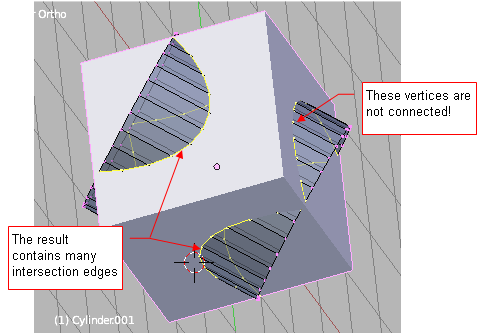
Usually there are problems with the faces around the new edge of intersection. 
I have found myself many times on deleting the ones, originally created by the Boolean 
operation. After their removal, I had to create manually a more "regular" face pattern 
around such a hole. 
</p>
<p>
Ultimately, I concluded, that I need a tool, which would create the common edge of two 
arbitrary meshes. It was more practical to create the new faces around it manually, not spending time 
on removing the automatically created ones. So, here is such tool. I have found it useful, 
maybe you also utilize it.
</p>
</div>
<div class="expose">
<p>
Since Blender 2.72 there is a similar, standard <b>Intersection (Boolean)</b> command. (Actually in Blender 2.8 you can find it in <b>Edit Mode</b>, in the <b>Faces</b> menu). It resembles this add-on and produces similar results. The difference is that it splits the original faces along the newly created intersection edge, or removes one of the dissected mesh parts. 
</p>
</div>
<div><p>However, the standard <b>Intersect</b> command and the plugin presented below provide the user different result options. I suggest to use both of them. (This plugin add its commands to a  different menu, so there is no conflict). In my daily work I use the standard command when I want to split the mesh faces, and the plugin command when I want to rearrange the mesh topology around the intersection edge. 
</p></div>
<div>
<p><b><a href="downloads/scripts/28/object-intersection.zip">Here</a></b> you can download the <b>object_intersection.py</b> add-on file for Blender 2.8.</p>
<p><a href="downloads/scripts/25/object-intersection.zip">Here</a> you can download the object_intersection.py add-on file for previous Blender versions (2.5..2.7).</p>
<p>
To follow this tutorial, you should install this <b>Intersection</b> add-on into your Blender environment. (Here is the <a href="scripts-251_e.xml">the description</a>, 
which explains how to do this).
</p>
</div>

<br/>
<div class="subheader">Add-on activation</div>
<div>
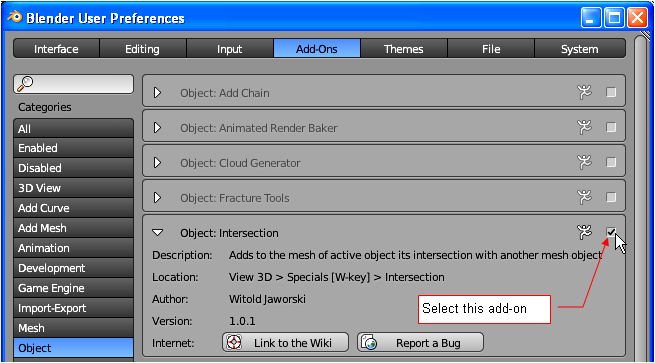
To use the Intersection command, activate <b>Intersection</b> add-on (you will find it in the <b>Object</b> category) (Fig.1):
<table cellSpacing="0" cellPadding="0pt" align="center">
	<tr align="center" valign="top">
		<td>
				<IMG class="image700" style="max-width:655px;" src="images/scripts/253/image01_e.png" align="center"/>
		</td>
	</tr>
	<tr align="center" valign="top">
		<td><spanl>Fig. 1. Activation of the <b>Intersection</b> add-on.</spanl></td>
	</tr>
</table>
</div>
<divf>
</divf>
<div class="subheader">Add-on usage (<b>Object Mode</b>)</div>
<div>
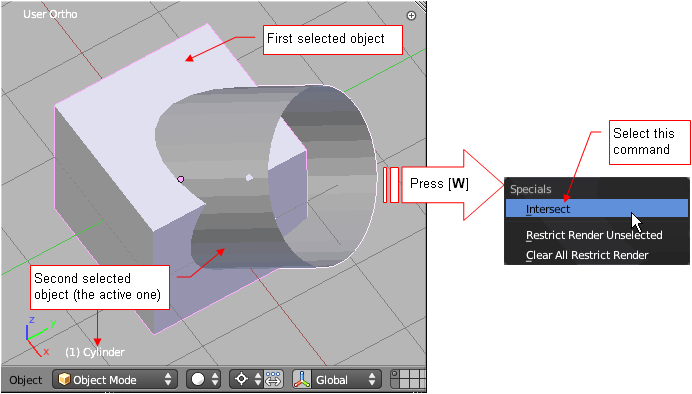
In <b>Object Mode</b> select two objects for which you want to find the edge of intersection (Fig. 2), in Blender 2.8 open the <b>Object</b> menu (in Blender 2.7: press [<b>W</b>] key, to open the <b>Specials</b> menu):
<table cellSpacing="0" cellPadding="0pt" align="center">
	<tr align="center" valign="top">
		<td>
				<IMG  class="image700" style="max-width:692px;" src="images/scripts/253/image02_e.png" align="center"/>
		</td>
	</tr>
	<tr align="center" valign="top">
		<td><spanl>Fig. 2. Invoking the <b>Intersection</b> command (Blender 2.7).</spanl></td>
	</tr>
</table>
</div>
<divf>
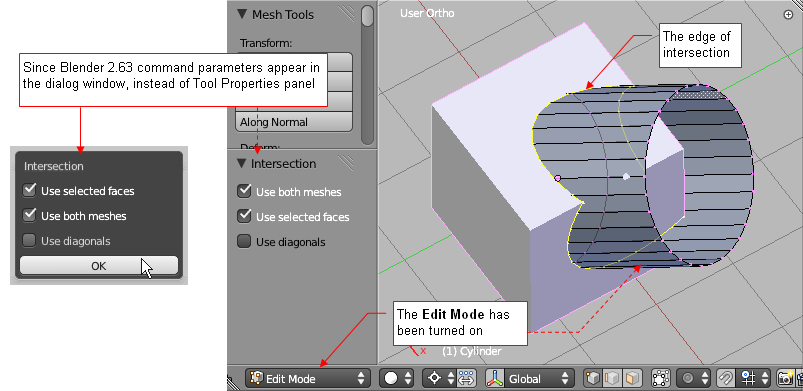
<p>Select the <b>Intersect</b> command (you can find it at the top of this menu). It opens a dialog box with the options of this operation (Fig. 3):</p>
<table cellSpacing="0" cellPadding="0pt" align="center">
	<tr align="center" valign="top">
		<td>
				<IMG  class="image850" style="max-width:803px;" src="images/scripts/253/image03_e.png" align="center"/>
		</td>
	</tr>
	<tr align="center" valign="top">
		<td><spanl>Fig. 3. The options and result of the <b>Intersect</b> command.</spanl></td>
	</tr>
</table>
</divf>
<divf/>
<div>
<p>
When you click the [<b>OK</b>] button, this script switches Blender into the <b>Edit Mode</b>. 
It adds the intersection edge loop(s) to the mesh of the active object. This new edge is not connected to any of the mesh faces, and its vertices are selected. 
Thus, if you are not happy with the result, just press the [<b>X</b>] key to remove it and try again. 
</p>
</div>
<br/>
<div class="subheader">Add-on usage (<b>Edit Mode</b>)</div>
<divf>
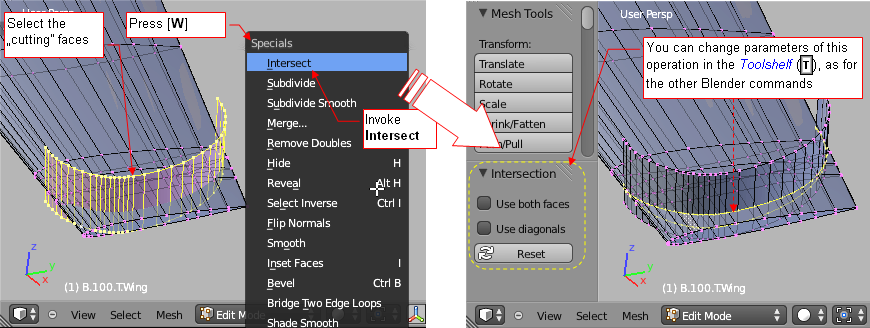
This add-on exposes its command also in the <b>Edit Mode</b>. In this mode it intersects the selected and unselected mesh faces (Fig. 4):
</divf>
<div>
<table cellSpacing="0" cellPadding="0pt" align="center" >
	<tr align="center" valign="top">
		<td>
				<IMG  class="image900" style="max-width:870px;" src="images/scripts/253/image12_e.png" align="center"/>
		</td>
	</tr>
	<tr align="center" valign="top">
		<td><spanl>Fig. 4. Using the <b>Intersect</b> command in <b>Edit Mode</b> (Blender 2.7)</spanl></td>
	</tr>
</table>
</div>
<divf>
<p>
In <b>Edit Mode</b> , select the faces you want to cut with the others, and then: in Blender 2.8 open the <b>Edges</b> menu (in Blender 2.7 press the [<b>W</b>] key to open the <b>Specials</b> menu). 
Select the <b>Intersect Faces</b> (in Blender 2.7: <b>Intersect</b>) command from there, so it will add the new edge loop (or loops) to the mesh. You can alter this result using the command options from the <b>Tool options</b> panel.
</p>
</divf>
<div class="subheader">"Use both meshes" option</div>
<div>
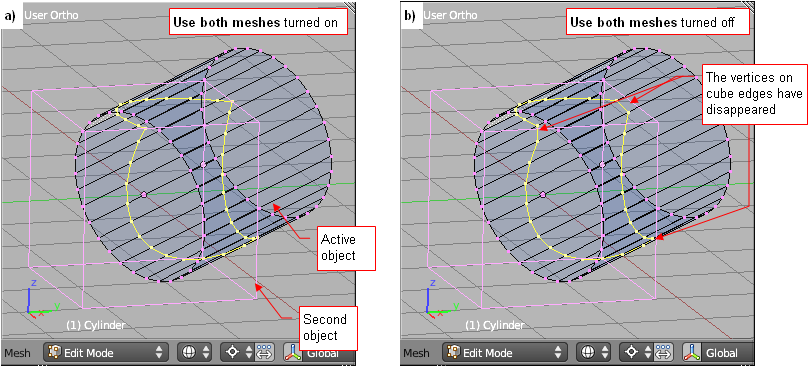
The result edge runs through the points where the edges of one mesh intersect the faces of the other. 
By default the program uses two sets of points. First is built from intersections of active object edges 
with the faces of the second mesh. The second — from the edge intersection of the second mesh with the faces of 
the active object. Then both result sets are combined together in one edge (Fig. 5a):
<table cellSpacing="0" cellPadding="0pt" align="center">
	<tr align="center" valign="top">
		<td>
				<IMG class="image850" style="max-width:809px;" src="images/scripts/253/image04_e.png" align="center"/>
		</td>
	</tr>
	<tr align="center" valign="top">
		<td><spanl>Fig. 5. Comparing results — option <b>Use both meshes</b> turned on (<b>a</b>) and off (<b>b</b>).</spanl></td>
	</tr>
</table>
</div>
<divf/>
<div>
<p>
If you want to get the edge consisting only points lying on the edges of the active object - turn off the default option
 <b>Use both meshes</b>. You will get the result that is generally less accurate (Fig. 5b). 
 However, it will be easier to integrate it into the existing grid, because there will be less triangular faces.
</p>
</div>
<br/>
<div class="subheader">"Use selected faces" option</div>
<div>
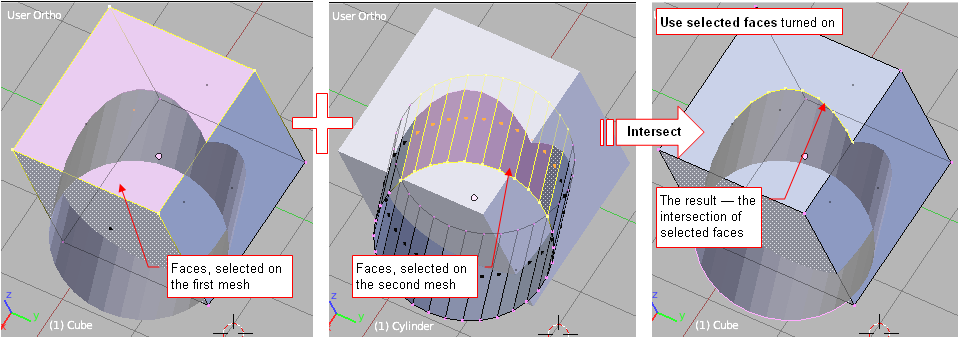
In the case of meshes with a large number of faces, it is worth to select a smaller area for processing 
(this reduces the computation time). If this command is invoked when the mesh has some marked faces, the script 
will process only this selected area. (If nothing is selected — whole mesh is processed). This is the default behavior of 
this plugin, when the option <b>Use selected faces</b> is turned on (Fig. 6):
<table cellSpacing="0" cellPadding="0pt" align="center" >
	<tr align="center" valign="top">
		<td>
				<IMG class="image900" style="max-width:959px;" src="images/scripts/253/image05_e.png" align="center"/>
		</td>
	</tr>
	<tr align="center" valign="top">
		<td><spanl>Fig. 6. Limiting the processed area by selection of the mesh faces.</spanl></td>
	</tr>
</table>
</div>
<divf/>
<div>
<p>
<b>Use selected faces</b> is enabled by default. If you do not want to limit the scope of the processed meshes - disable it.
</p>
<p>
In <b>Edit Mode</b> this option is not available. If you want to exclude some faces from this operation - hide them before, using the <b>Hide Selected</b> command ([<b>H</b>]). After completing thei command, you can unhide them ([<b>Alt</b>]-[<b>H</b>] – <b>Show Hidden</b>)
</p>
</div>
<br/>
<div class="subheader">"Use diagonals" option</div>
<div class="right500" style="max-width:500px; margin:auto;">
<table  cellSpacing="0" cellPadding="0pt" >
	<tr align="center" valign="top">
		<td>
				<IMG class="image500" style="max-width:482px" src="images/scripts/253/image06_e.png" align="center"/>
		</td>
	</tr>
	<tr align="center" valign="top">
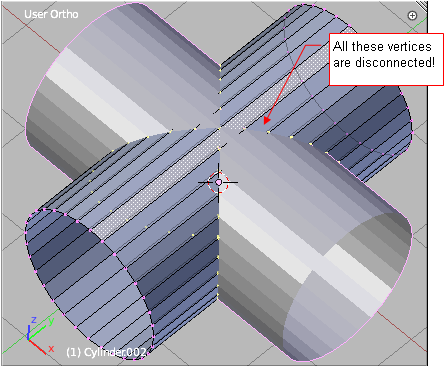
		<td><spanl>Fig. 7. An example of incomplete result edge.</spanl></td>
	</tr>
</table>
</div>
<div>
<p>The hardest part of the algorithm, used in this plugin, is the fragment responsible for connecting the intersection points 
into one or more continuous edges. Usually it works fine, but sometimes the errors occur. The chance for such errors is 
higher, when the result contains several separate edges (Fig. 7):
</p>
</div>
<divf/>
<div class="right500" style="max-width:500px; margin:auto;">
<table  cellSpacing="0" cellPadding="0pt" >
	<tr align="center" valign="top">
		<td>
				<IMG class="image500" style="max-width:445px" src="images/scripts/253/image07_e.png" align="center"/>
		</td>
	</tr>
	<tr align="center" valign="top">
		<td><spanl>Fig. 8. Special case — the algorithm for connecting intersection points failed here.</spanl></td>
	</tr>
</table>
</div>
<div>
<p>
Of course, if there are just a few such errors, you can just quickly correct it, connecting the vertices by hand. 
Be aware the situations, where the edges of one mesh exactly intersect the edges of the second mesh. That can happen, 
for example, when you try to find the intersection of two identical cylinders (Fig. 8):
</p>
</div>
<divf/>
<div class="right500" style="max-width:500px; margin:auto;">
<table  cellSpacing="0" cellPadding="0pt" >
	<tr align="center" valign="top">
		<td>
				<IMG class="image500" style="max-width:428px"  src="images/scripts/253/image08_e.png" align="center"/>
		</td>
	</tr>
	<tr align="center" valign="top">
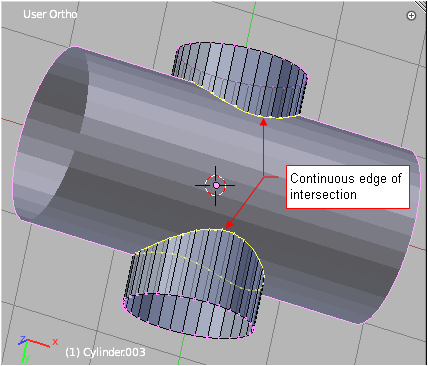
		<td><spanl>Fig. 9. The correct result, obtained for similar case.</spanl></td>
	</tr>
</table>
</div>
<div>
<p>
In this particular case, as in Fig. 8, all intersection points have been found, but the script failed to join 
them into one edge. Of course, if you will use two different cylinders, you will get the correct result (Fig. 9):
</p>
</div>
<divf>
<p>
In case of problems - remember, usually just a small rotation or displacement of one of the meshes allows the script 
to connect the edge points properly. As a precaution, I have added to the parameters of the script the <b>Use diagonals</b> option.
</p>
</divf>
<div>
During the processing program converts each quadrilateral face mesh into two triangles, connected along the diagonal. 
The intersection of this diagonal with the mesh faces of the opposite object is calculated, as for the other edges. 
However, these "diagonal" points are used as helper information, and are not included into the ultimate result - the edge. 
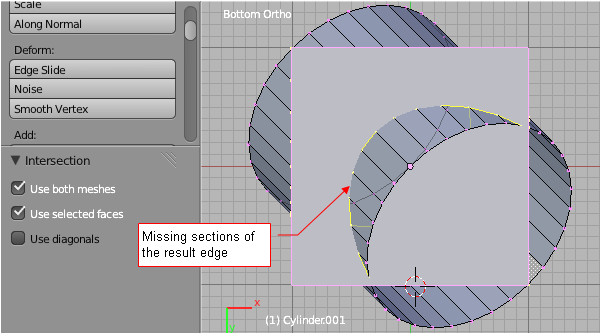
Neverthless, sometimes we can get in the result an incomplete edge - as on Fig. 10:
<table cellSpacing="0" cellPadding="0pt" align="center">
	<tr align="center" valign="top">
		<td>
				<IMG class="image640" style="max-width:601px"  src="images/scripts/253/image09_e.png" align="center"/>
		</td>
	</tr>
	<tr align="center" valign="top">
		<td><spanl>Fig. 10. Another example of incomplete result edge.</spanl></td>
	</tr>
</table>
</div>
<divf>
<p>
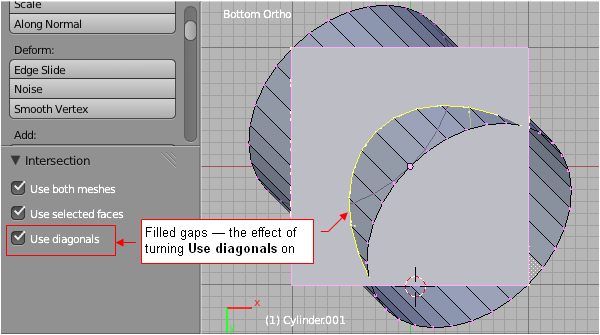
Sometimes you can improve the result, just turning the <b>Use diagonals</b> option on (Fig. 11):
</p>
</divf>
<div>
<table cellSpacing="0" cellPadding="0pt" align="center">
	<tr align="center" valign="top">
		<td>
				<IMG class="image640" style="max-width:600px" src="images/scripts/253/image10_e.png" align="center"/>
		</td>
	</tr>
	<tr align="center" valign="top">
		<td><spanl>Fig. 11. The effect of turning <b>Use diagonals</b> option on.</spanl></td>
	</tr>
</table>
</div>
<divf/>
<div class="right500" style="max-width:500px; margin:auto;">
<table  cellSpacing="0" cellPadding="0pt" >
	<tr align="center" valign="top">
		<td>
				<IMG class="image500" style="max-width:413px"  src="images/scripts/253/image11_e.png" align="center"/>
		</td>
	</tr>
	<tr align="center" valign="top">
		<td><spanl>Fig. 12. Result, obtained on the same shapes, but with more mesh faces.</spanl></td>
	</tr>
</table>
</div>
<div>
<p>
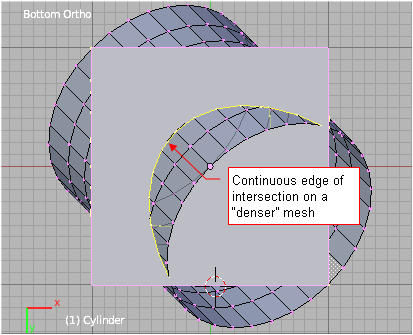
On the other hand - the obtained edge is less "handy" for further work, because now it has twice as many vertices than before. In fact, I left this option "just in case." In this and similar cases can also improve the result by adding additional edges to the meshes (Fig. 12):
</p>
</div>
<divf/>
</body>