<?xml version='1.0' encoding='utf-8' ?>
<?xml-stylesheet type="text/xsl" href="header_e.xsl" ?>
<body PageTitle="Bevel command" PageHeader="Tutorials" Created="2011-07-16" Updated="2013-03-01">
<br/>
<div>
<p>
Blender 2.5 is missing some important features. One of them is so called “destructive Bevel” command. 
(It has Bevel modifier, only). This add-on is one of the few attempts to implement this feature.
<p/>
NOTE: in Blender 2.63 the Bevel command is back. However, this standard command produces for an open edge loop a chamfer that has variable
angle, which is not proper for the machine parts or architecture. Thus this add-on still is needed, as long as the standard Bevel command is not fixed.
The pictures below were created in earlier Blender versions. In 2.63 this add-on fully uses the n-gon feature and does not produce any unwanted traingles!
</p>
</div>
<div>
<p><a href="downloads/scripts/25/mesh-bevel.zip">Here</a> you can download the <b>mesh_bevel.py</b> add-on file.</p>
<p>
To follow this tutorial, you should install this add-on into your Blender environment. (Here is the <a href="scripts-251_e.xml">tutorial</a>, 
which explains how to do that).
</p>
</div>

<br/>
<div class="subheader">Add-on activation</div>
<div>
<p>To use the Bevel command, activate <b>Bevel</b> add-on (you will find it in the <b>Mesh</b> category) (Fig.1):</p>
<table cellSpacing="0" cellPadding="0pt" align="center">
	<tr align="center" valign="top">
		<td>
				<IMG src="images/scripts/252/image01_e.png" align="center"/>
		</td>
	</tr>
	<tr align="center" valign="top">
		<td><spanl>Fig. 1. Activation of the <b>Bevel</b> add-on.</spanl></td>
	</tr>
</table>
</div>
<divf/>
<div>
<p>If you want to activate it permanently, use <b>Save User Setings</b> button.</p>
</div>
<div class="subheader">Add-on usage</div>
<div>
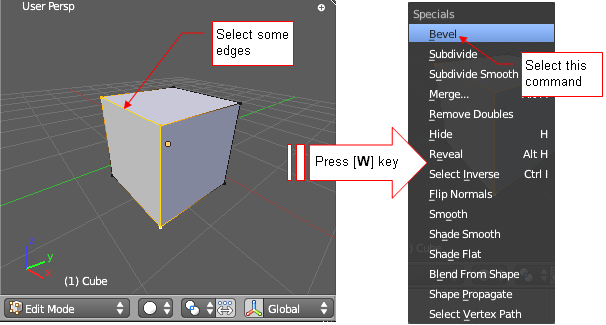
<p>In <b>Edit Mode</b> select the edges, you want to bevel (Fig. 2), then press [<b>W</b>] key, to open the <b>Specials</b> menu:</p>
<table cellSpacing="0" cellPadding="0pt" align="center">
	<tr align="center" valign="top">
		<td>
				<IMG src="images/scripts/252/image02_e.png" align="center"/>
		</td>
	</tr>
	<tr align="center" valign="top">
		<td><spanl>Fig. 2. Invoking the <b>Bevel</b> command</spanl></td>
	</tr>
</table>
</div>
<divf/>
<div>
<p>Select the <b>Bevel</b> command from there. Initially it will bevel selected edges with default width. 
(This is the width used in the previous operation).</p>
<p>If you want to adjust it, press [<b>T</b>] key, to open the <b>Tool Properties</b> pane (Fig. 3):</p>
<table cellSpacing="0" cellPadding="0pt" align="center">
	<tr align="center" valign="top">
		<td>
				<IMG src="images/scripts/252/image03_e.png" align="center"/>
		</td>
	</tr>
	<tr align="center" valign="top">
		<td><spanl>Fig. 3. Command parameters in the <b>Tool Properties</b> pane</spanl></td>
	</tr>
</table>
</div>
<divf/>
<div>
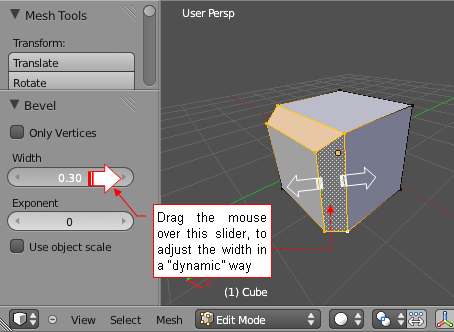
<p>You can change the current bevel width using the <b>Width</b> control (Fig 4):</p>
<table cellSpacing="0" cellPadding="0pt" align="center">
	<tr align="center" valign="top">
		<td>
				<IMG src="images/scripts/252/image04_e.png" align="center"/>
		</td>
	</tr>
	<tr align="center" valign="top">
		<td><spanl>Fig. 4. Dynamic adjustment of the bevel width</spanl></td>
	</tr>
</table>
</div>
<divf/>
<div>
<p>Every change of the value here is immediately displayed on the screen. You can adjust the bevel width in a “dynamic” way, just dragging the mouse (with <b>LMB</b> pressed) over the <b>Width</b> control.</p>
</div>
<div>
<table cellSpacing="0" cellPadding="0pt" align="right">
	<tr align="center" valign="top">
		<td>
				<IMG src="images/scripts/252/image05.png" align="center"/>
		</td>
	</tr>
	<tr align="center" valign="top">
		<td><spanl>Fig. 5. Meaning of the bevel <b>Width</b> parameter in Blender</spanl></td>
	</tr>
</table>
<p>
Usually you will not need to change two other controls, associated with the Bevel width value. 
Nevertheless, you should know what they do:
</p>
<li><b>Exponent</b>: it is the "order of magnitude" of the width. For example, when the 
Width = 0.30 and Exponent = 0 it means that the effective bevel width value in the is 
0.30 e+0 = 0.3 Blender Units. If the Exponent was 1, it would be =0.30e+1 = 3.0. 
The value of the exponent is automatically adjusted, to match the size of the beveled mesh. 
It is left here just to leave you the ultimate control over it.
</li>
<li><b>Use object scale</b>: usually it is turned off, and the effective bevel width is 
determined by the Width and Exponent values. Turn it on, to have it multiplied by the object 
scale.
</li>
<br/>
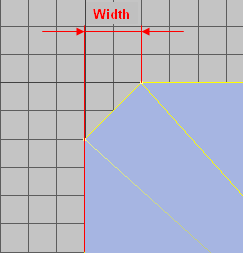
<p>Beware, that the <b>Width</b> value is not the width of the new face. It is the width of its side view (Fig 5):</p>
</div>
<divf/>
<div>
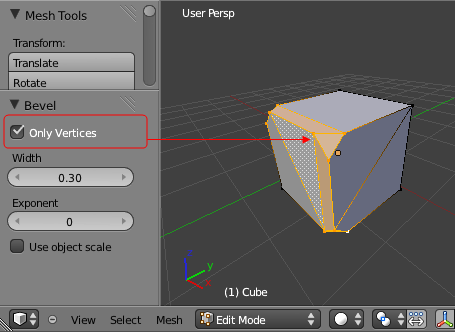
<p>The <b>Only Vertices</b> option allows you to bevel just the ends of the edges (Fig. 6):</p>
</div>
<div>
<table cellSpacing="0" cellPadding="0pt" align="center">
	<tr align="center" valign="top">
		<td>
				<IMG src="images/scripts/252/image06.png" align="center"/>
		</td>
	</tr>
	<tr align="center" valign="top">
		<td><spanl>Fig. 6. Beveling just the box corners</spanl></td>
	</tr>
</table>
</div>
<div>
<p>NOTE: Since Blender 2.63 this command creates n-gons instead of the unwanted triangles (this picture was made in an earlier Blender version)</p>
</div>
</body>